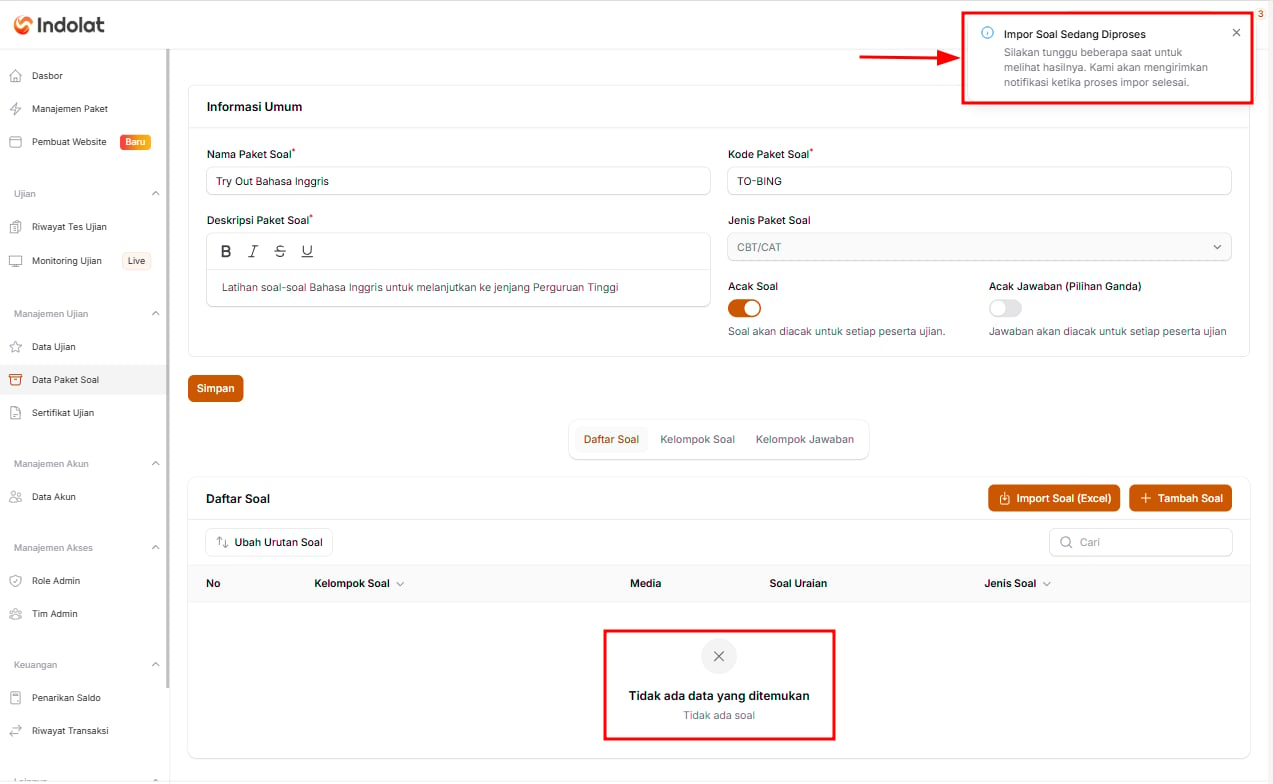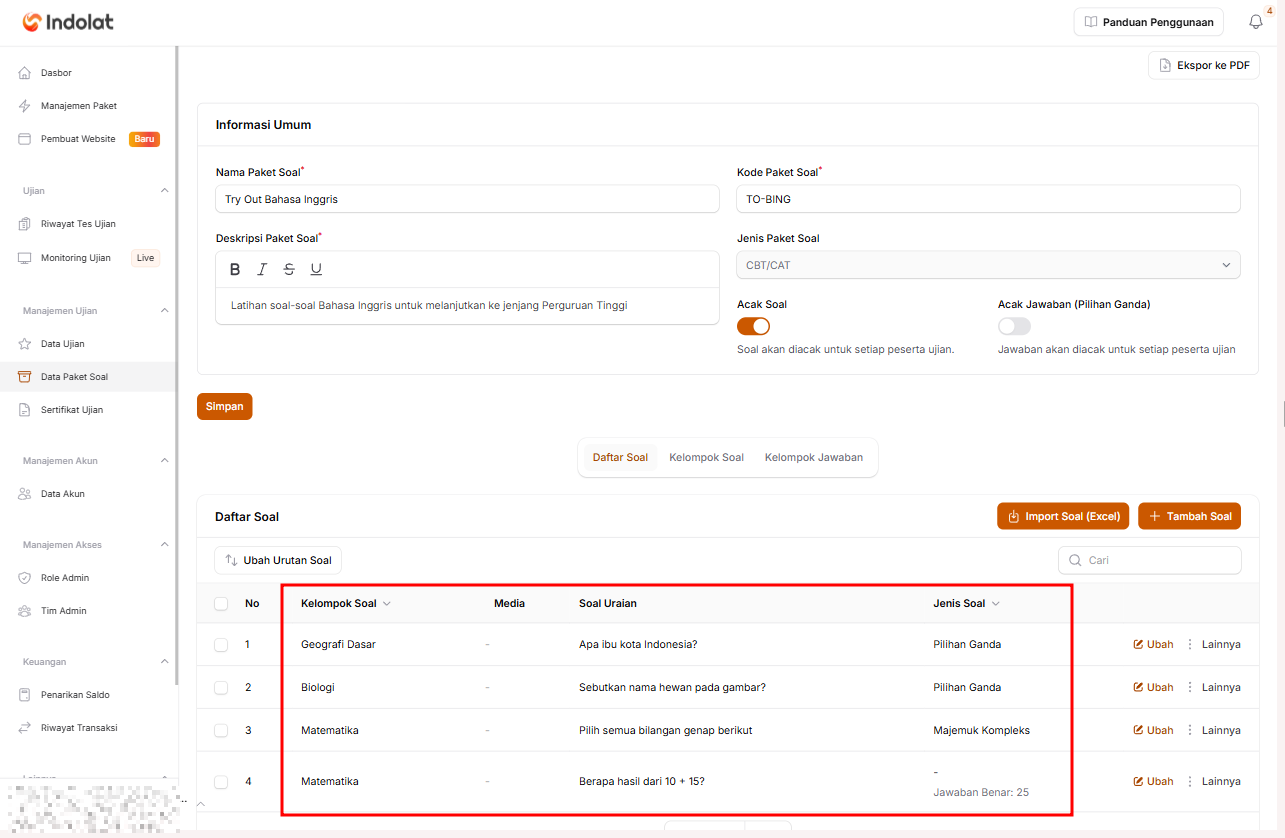

💡 For example, you’re preparing a tryout (practice exam) with several question types. The teaching team has already written the questions in Excel. Instead of entering them one by one, you can import all of them using the template.
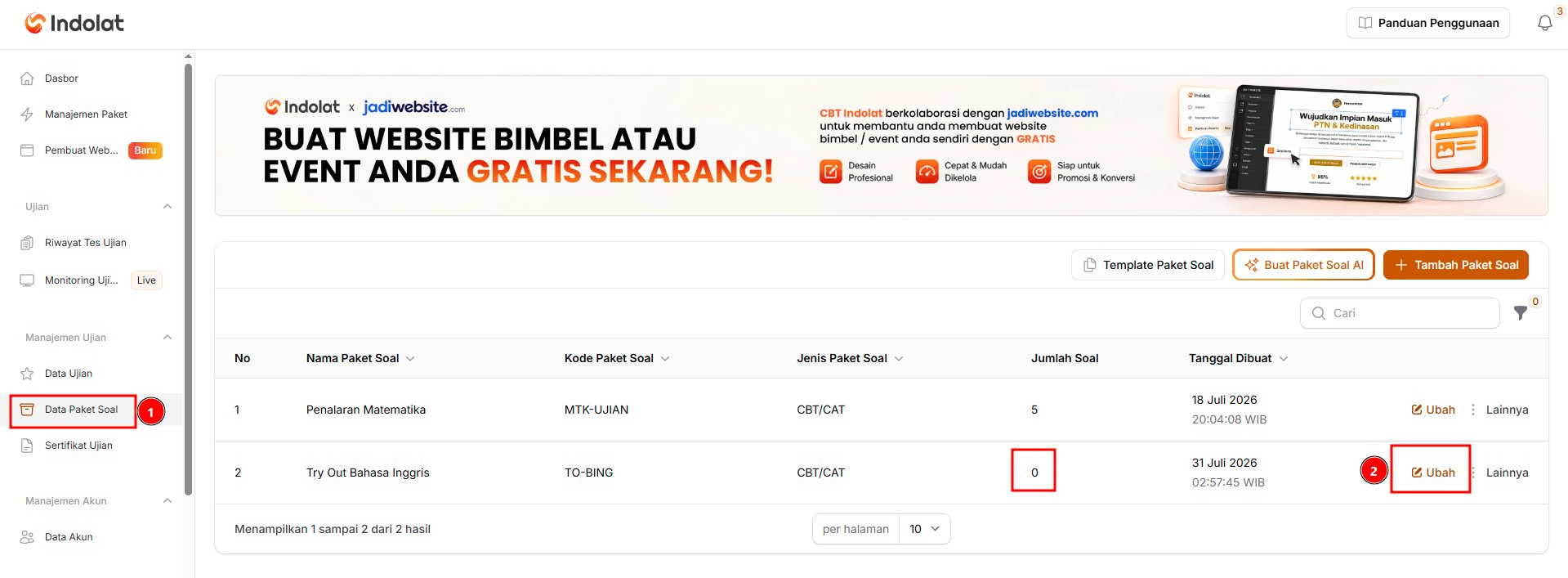
1
Click Edit on the question package
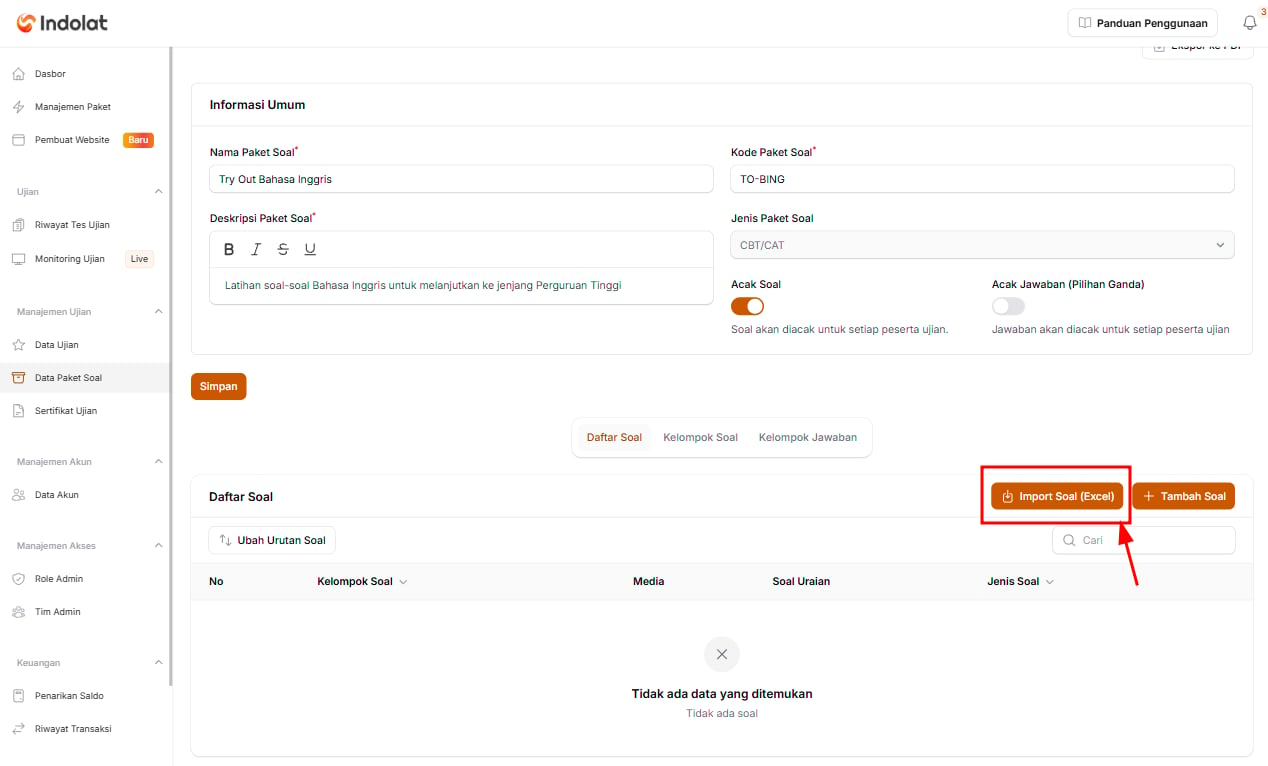
2
Click Import Questions (Excel)
3
Click Download Template
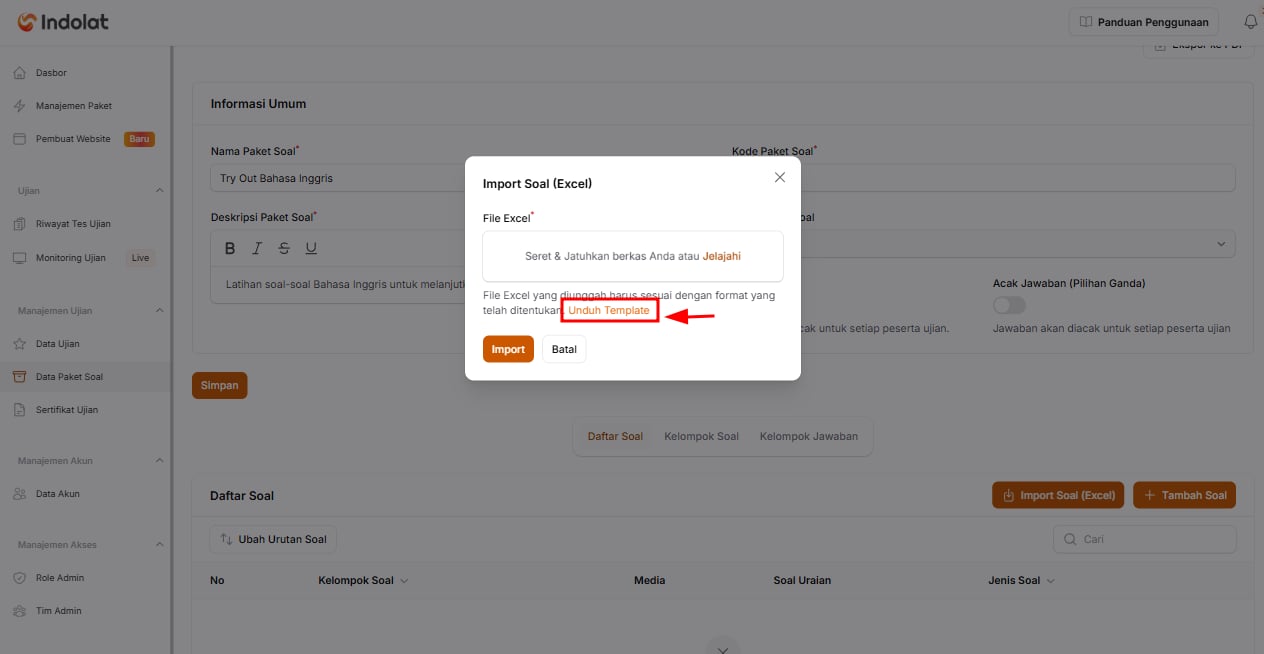
4
Open the downloaded template
The Excel template has four sheets: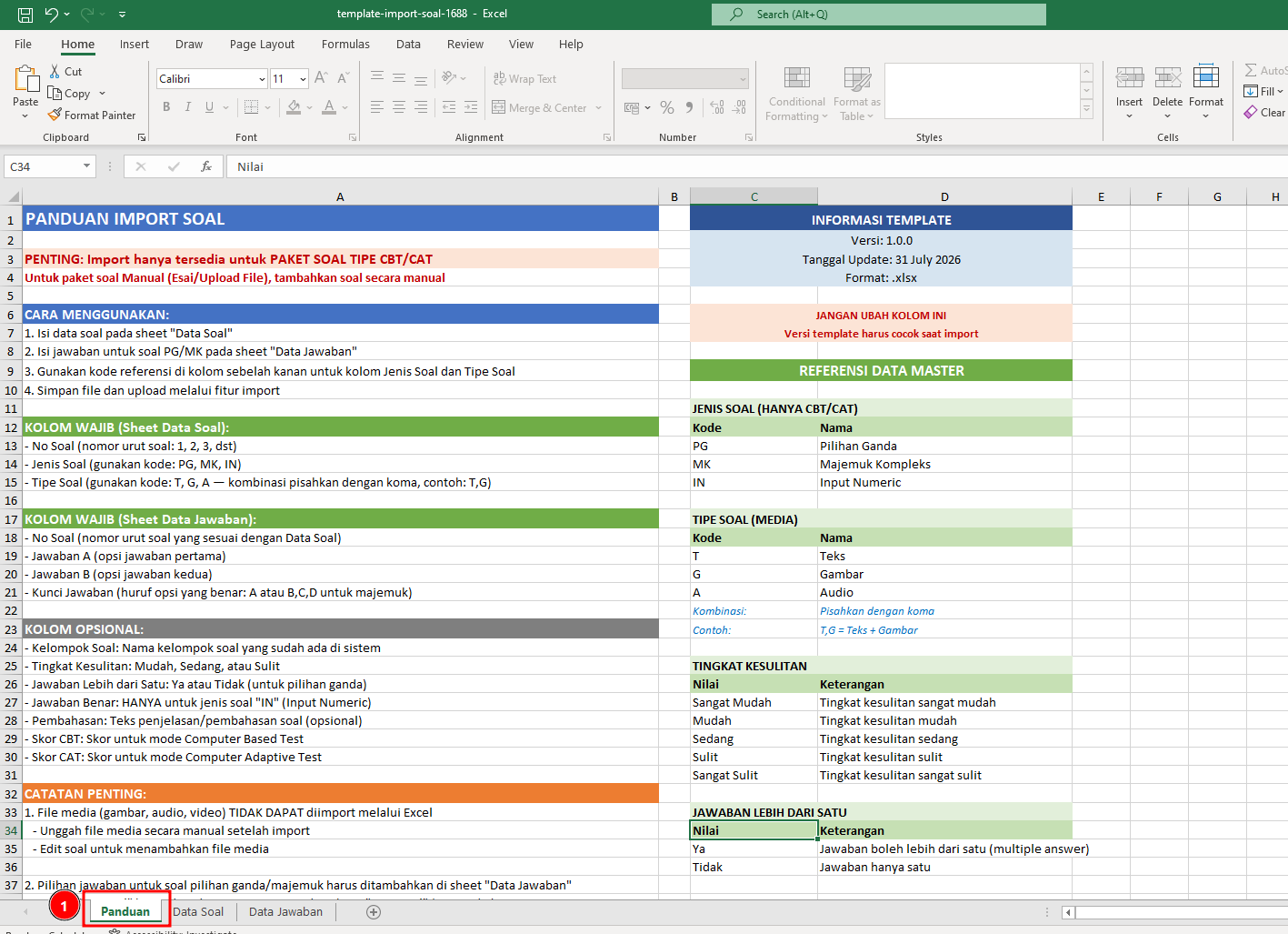
- Panduan (the instructions sheet; its name is not translated)
- Question Data
- Answer Data
- Passage Data (optional)
Keep the following rules in mind:
- Import is only available for CBT/CAT question packages.
- Don’t change the column names or the layout of the template.
- Question images and answer images can be added through image links (see Image link rules below). Audio and video are still added after the import.
- Use the codes listed in the instructions to fill in the question type and content type.
- Use the latest template (version 1.2.0) so that the image link columns and the passage sheet are available. Files made from earlier template versions can still be imported.
5
Fill in the Question Data sheet
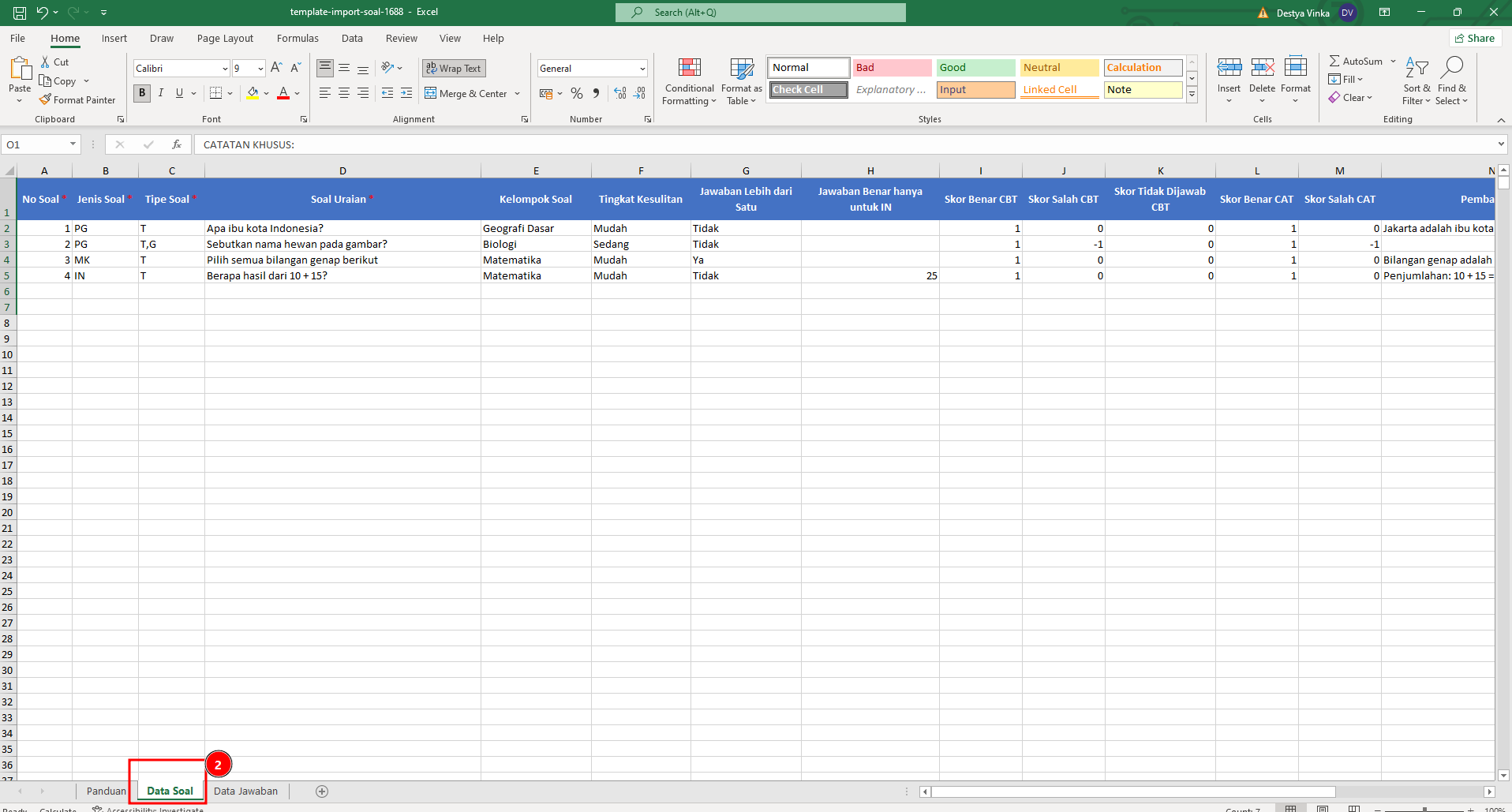
- Question No
Enter the question’s sequence number, for example 1, 2, 3 and so on. - Question Type
Enter the question type using a code:- PG for Multiple Choice
- MK for Complex Multiple Response
- IN for Short Answer
- Content Type
Enter how the question is presented using the codes below. To use more than one type, separate them with commas, for example T,G.- T for Text
- G for Image
- A for Audio
- Essay Question
Enter the question participants will answer, up to 5,000 characters. You can leave it empty if the question is only an image from Question Image Links. - Question Group
Enter the name of the question group. If no question group with that name exists yet, it is created automatically. Leave it empty if the question doesn’t need to be grouped. Examples:- Basic Geography
- Biology
- Mathematics
- Difficulty Level
Enter the question’s difficulty level (the Indonesian values, such as Mudah or Sulit, are also accepted), for example:- Very Easy
- Easy
- Medium
- Hard
- Very Hard
- More Than One Answer
Enter Yes if the question has more than one correct answer, or No if it has only one correct answer. Ya and Tidak are also accepted. - Correct Answer applies to IN only
For IN (Short Answer) questions only, enter the correct answer as a number or text. If several answers count as correct, separate them with |, for exampleDKI Jakarta | Jakartaor0.5 | 1/2. If all the answers are numbers, participants can only type numbers during the exam. Leave this column empty for other question types. - CBT and CAT scores
Enter the score for a correct, wrong or unanswered question in the CBT Score for Correct, CBT Score for Wrong, CBT Score for Unanswered, CAT Score for Correct and CAT Score for Wrong columns, according to the scoring rules you use. - Explanation
Enter an explanation of the answer if needed. - Question Image Links
Optional. Enter the image link(s) for this question. If the question has several images, put one link per line in the same cell (up to 10 images). - Passage Code
Optional. Enter a passage code from the Passage Data sheet (for exampleW1) if the question uses a shared reading text.
6
Fill in the Answer Data sheet
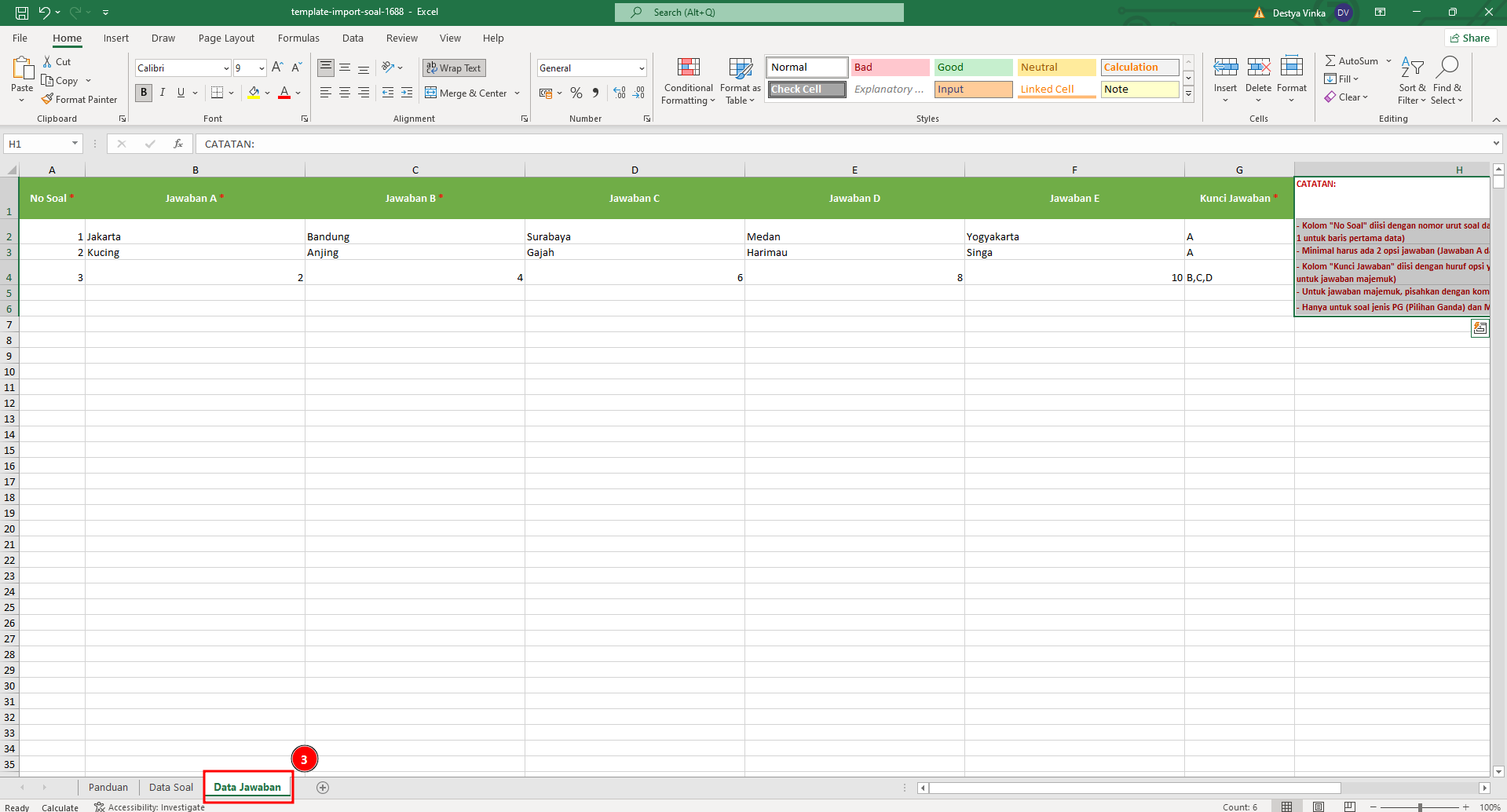
- Question No
Enter the same number as in the Question Data sheet. - Answer A to Answer E
Enter the answer options participants will see. There must be at least two answer options (Answer A and Answer B), as text or as an image link. - Answer Key
Enter the letter of the correct answer. For example:- Enter A if only Answer A is correct.
- Enter B,C,D (separated by commas, without spaces) if there is more than one correct answer.
- Image Link A to Image Link E
Optional. Enter one image link for the matching answer option. An answer option can be text, an image or both.
Image link rules
- Use a full link that starts with
https://and points directly at a JPG, PNG, GIF or WebP image file of up to 5 MB. An easy check: when you open the link in a browser, only the image is shown. - Page links, such as a Google Drive sharing page or a web page that contains the image, are not image links and will be rejected.
- Images are downloaded and stored in your project’s storage, not linked to the original address. The question stays intact even if the original link later changes or is deleted, and the image size counts towards your storage quota.
- For security, the system only downloads from public servers on the internet and checks that the file really is an image.
- If one image fails to download, the whole import is cancelled and the notification names the rows to fix. A file can contain up to 300 image links.
7
Fill in the Passage Data sheet (optional)
Fill in the Passage Data sheet only if several questions share the same reading text. Its columns are:
- Passage Code
A unique code for each passage, for exampleW1,W2. Write this code in the Passage Code column of the Question Data sheet for every question that uses the passage. - Passage Title
Optional and only visible to admins. If left empty, the code is used as the title. - Passage Text
The reading text, up to 20,000 characters. Separate paragraphs with a line break inside the cell (Alt+Enter). It can be left empty if the passage uses Passage Image Links instead. - Passage Image Links
Optional. Image links follow the same rules as question image links; put one link per line for several images.
8
Upload the template
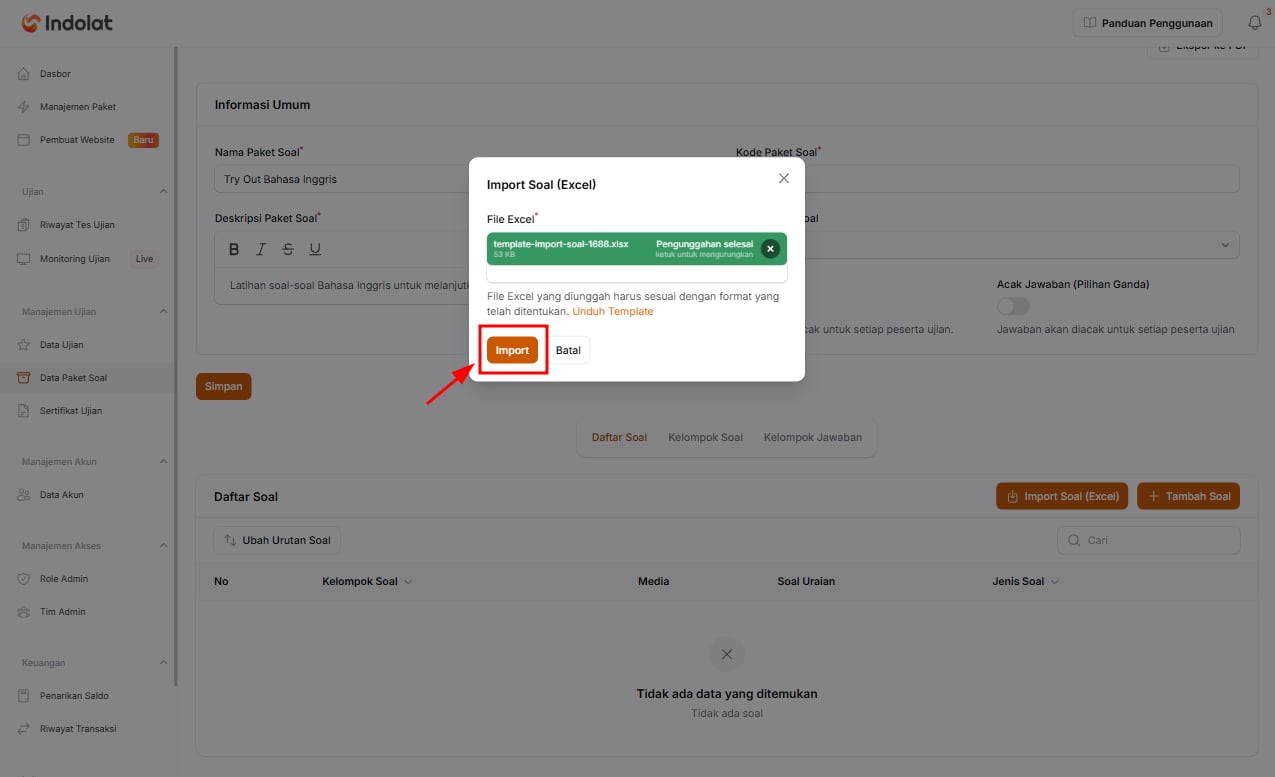
- Save the Excel file.
- Click Import Questions (Excel) again on the question package.
- Upload the completed file.
- Click Import.
- Wait until the process is finished. The import runs in the background, and you’ll get a notification when it’s done.