
- Mathematical Reasoning
- Indonesian Literacy
- English Literacy
1. Add a Test
Click Add Test in the Test List section.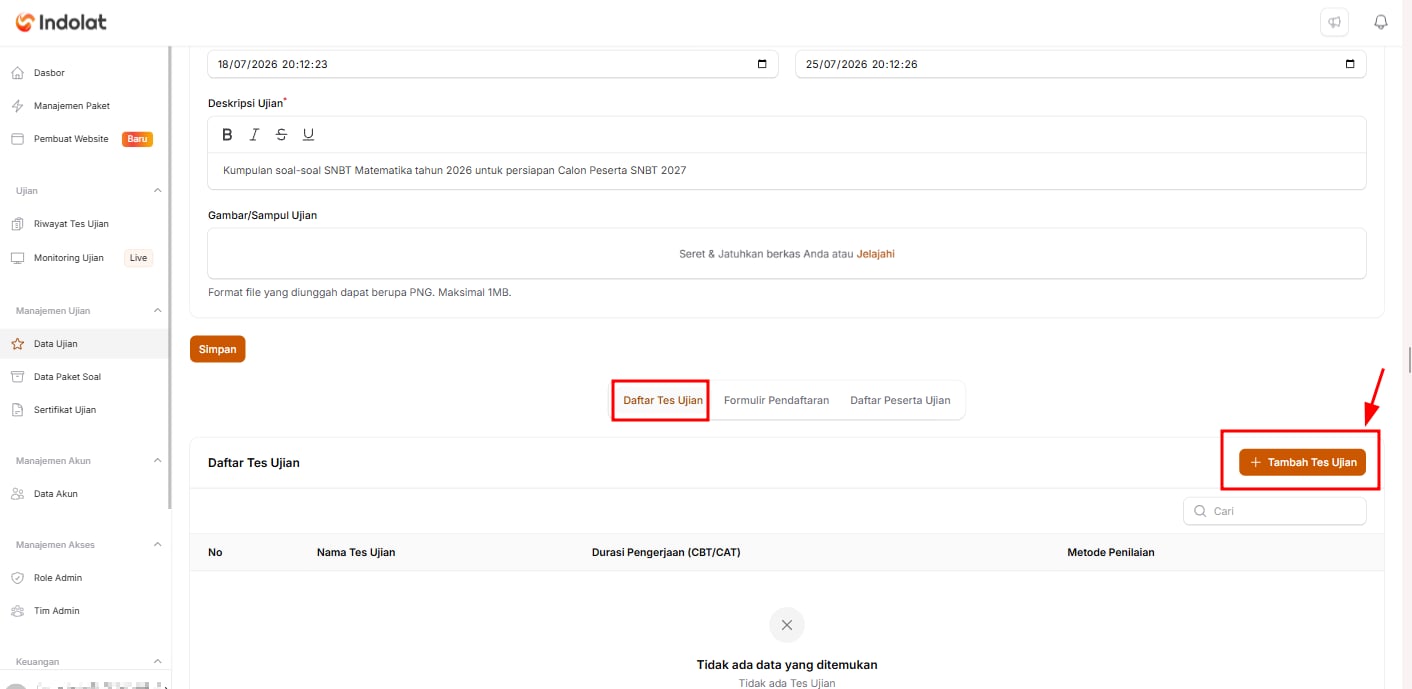
If a test was missed and not added to the exam, you can go back and add it with these steps: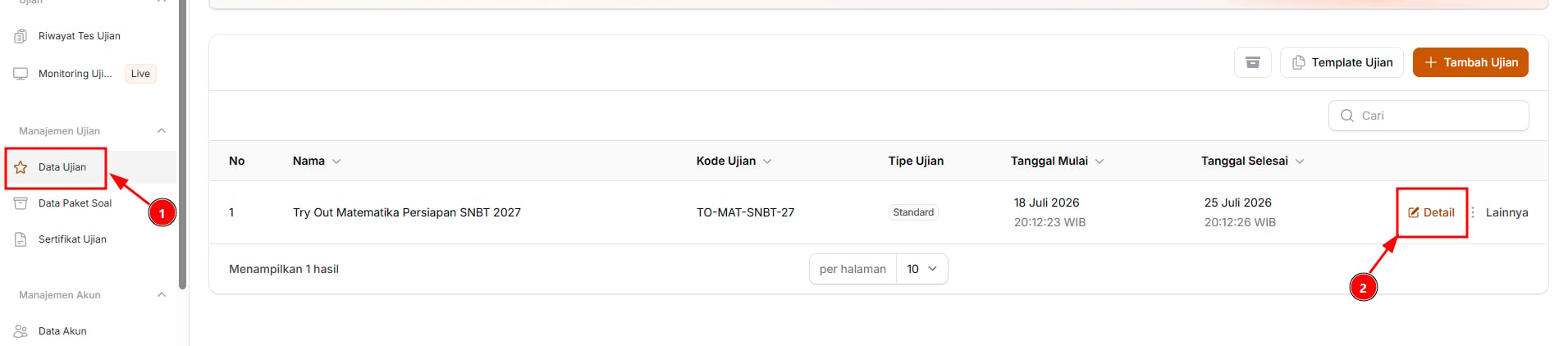
- Open the Exam Data menu.
- Choose the exam that doesn’t have the test yet.
- Click Details on that exam.
- Add the test in the Test List section with the Add Test button.
2. Fill In the Test Information
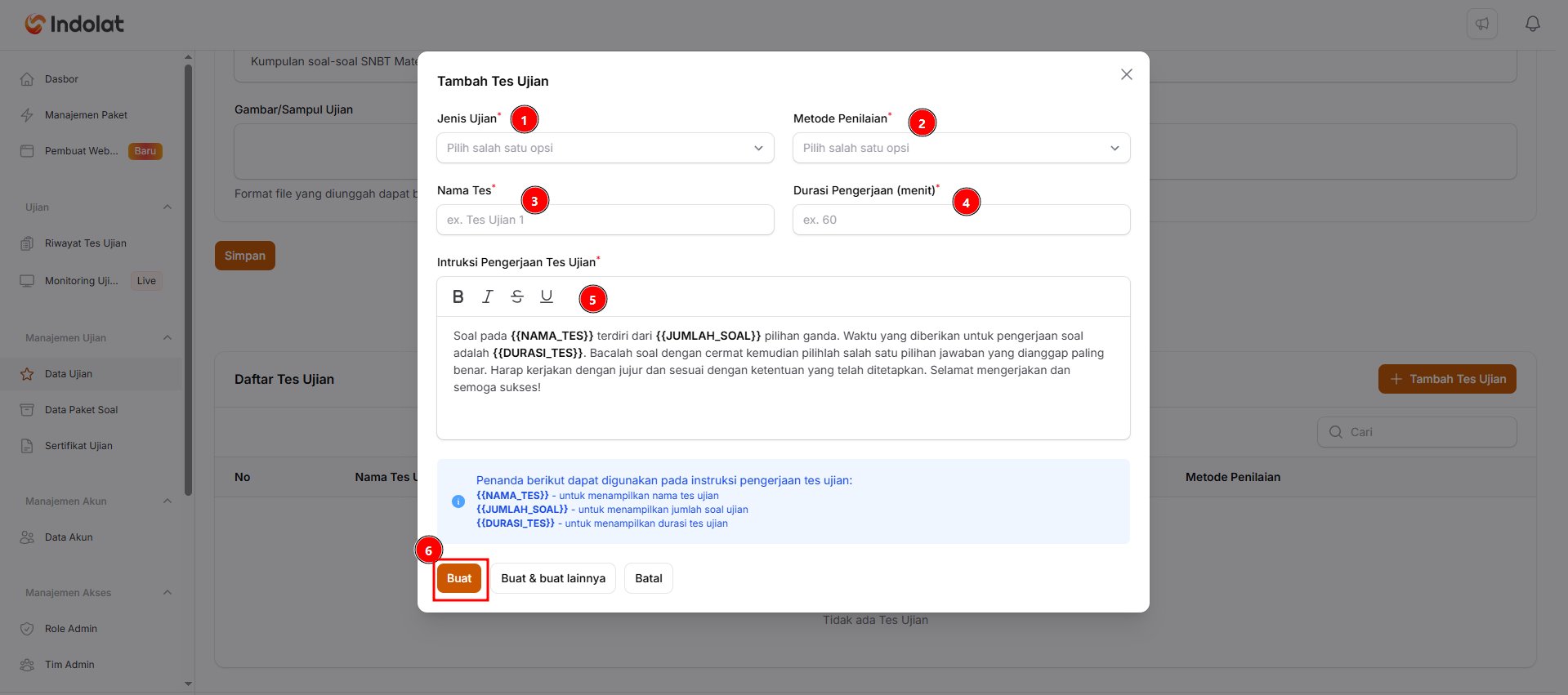
Exam Type
Choose the type of test you are running.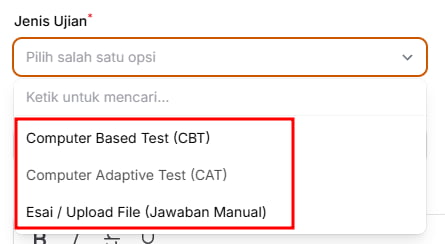
-
Computer Based Test (CBT)
Participants see the questions on screen and choose or type their answers directly in the system.Example: a participant sees the question 10 × 5 = … and selects the answer 50 on screen.
-
Computer Adaptive Test (CAT)
The next question adapts to the participant’s ability. This type can only be chosen for a Professional Exam (Paid Plan).Example: a participant answers the first question correctly. The system then gives a slightly harder question. If the participant answers incorrectly, the system can give an easier or similar question.
CAT is like an exam that “follows the participant’s ability”. The more correct answers, the harder the next questions can get. -
Essay / File Upload (Manual Grading)
Participants don’t choose an answer as they would in a multiple-choice question. They write a long answer or upload a file.Examples:
- Writing an essay answer directly in the system.
- Uploading a photo of an answer sheet.
- Uploading a PDF or Word file.
Scoring Method
Decide how the system calculates participants’ scores.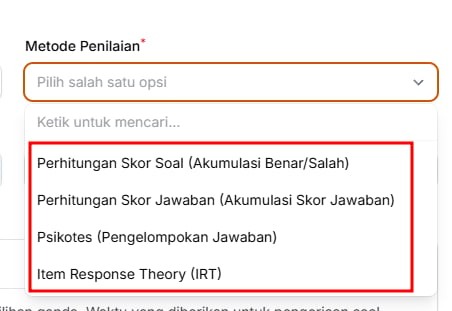
The scoring methods on offer depend on the Exam Type. All the methods below are available for CBT. CAT only offers Question Score Calculation (Sum of Correct/Wrong), and Essay / File Upload (Manual Grading) uses Manual Scoring.
-
Question Score Calculation (Sum of Correct/Wrong)
The score is calculated from the number of questions answered correctly.Example:
Suitable for tryouts or regular multiple-choice exams.- Correct answer: 10 points
- Wrong answer: 0 points
- The participant answers 8 out of 10 questions correctly
- Participant’s score: 80
-
Answer Score Calculation (Sum of Answer Scores)
Each answer option can carry a different score.Example: Question: How often do you study in a week?
The final score is the sum of the scores of all the participant’s answers.- Every day: 4 points
- 3–4 times: 3 points
- 1–2 times: 2 points
- Never: 1 point
-
Psychometric (Answer Grouping)
The participant’s answers are grouped to reveal certain tendencies or traits.Example: Question: When working in a group, you prefer to…
The result isn’t simply right or wrong; it shows which trait group the participant belongs to.- Organise how the tasks are shared → Leadership group
- Help the other members → Teamwork group
- Work on your own part → Independent group
-
Item Response Theory (IRT)
The score doesn’t just count correct answers; it also takes the difficulty of each question into account.Example:
This method suits large-scale exams or a deeper analysis of participants’ ability. IRT comes in three options:- Many participants answer the easy questions correctly.
- Only a few participants answer the hard questions correctly.
- Participants who can answer the hard questions can get a higher ability score.
- IRT (UTBK reference, 0-1000): scores are reported on a 0–1,000 range, based on the UTBK scale.
- IRT TKA for SMA/SMK (200-800): scores are reported on a 200–800 range, based on the scale of TKA (Indonesia’s academic ability test) for SMA/SMK (senior and vocational high school).
- IRT TKA for SD/SMP (0-100): scores are reported on a 0–100 range, based on the TKA scale for SD/SMP (primary and junior high school).
Test Name, Working Time and Instructions
- Test Name: enter a name that’s easy to recognise.
Example: Mathematical Reasoning. - Working Time (minutes): enter how long participants have to work on the test, in minutes.
Example: 60. This field doesn’t appear for the Essay / File Upload (Manual Grading) type. - Test Fee: only appears when the exam’s Payment Type is Paid per Test. Enter the fee participants pay to take this test.
- Test Instructions: write the instructions participants read before they start.
{{NAMA_TES}}shows the test name.{{JUMLAH_SOAL}}shows the number of questions.{{DURASI_TES}}shows the working time.
3. Open the Test You Created
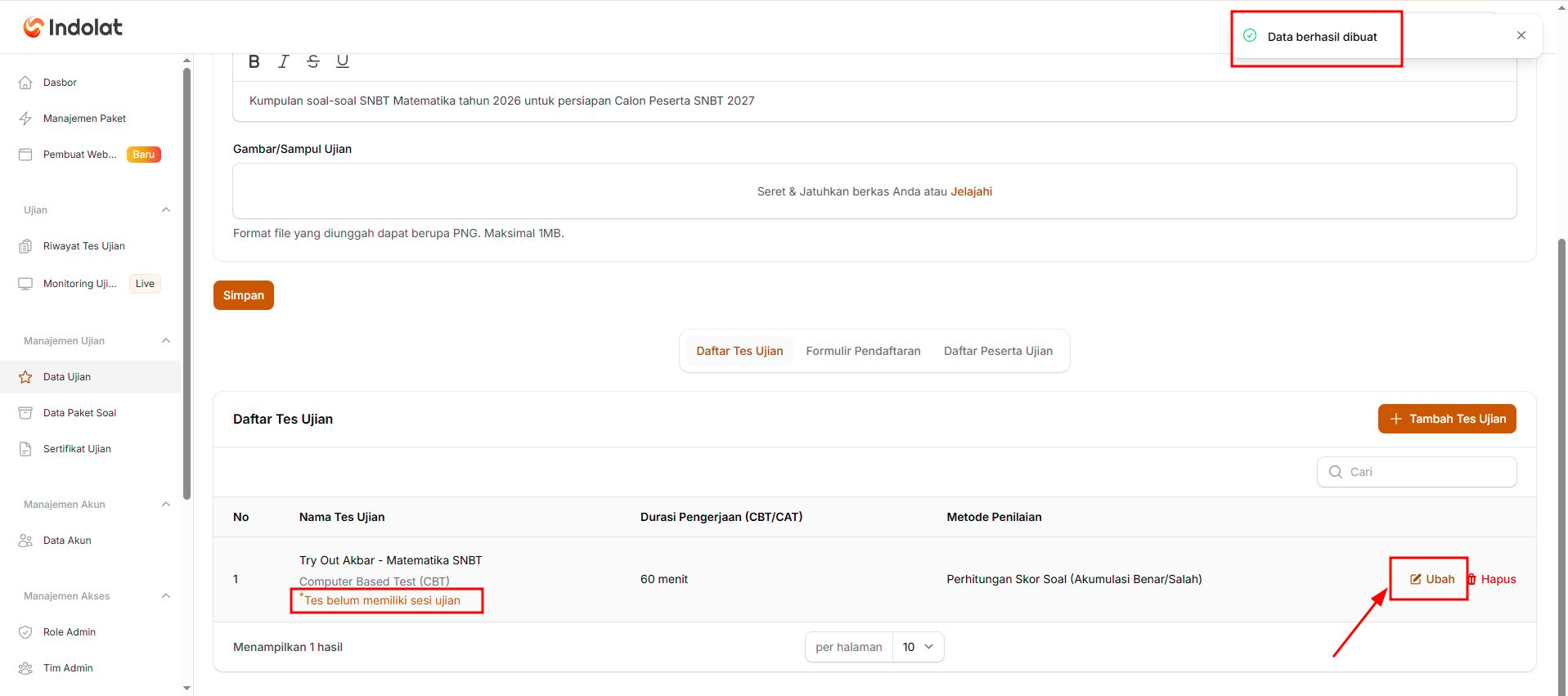
4. Set Up Scores and Results
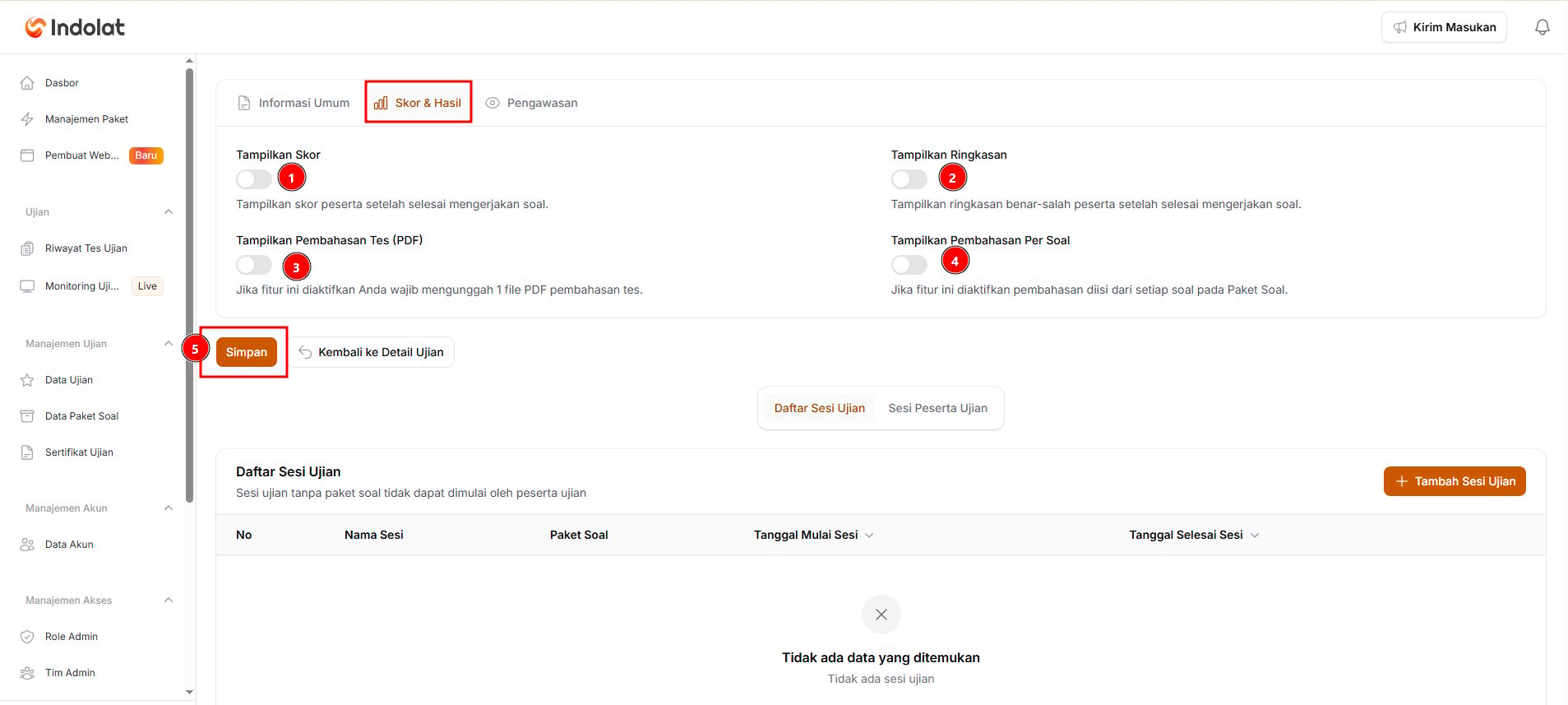
- Show Score
Turn this on if participants may see their score as soon as they finish. - Show Summary
Turn this on if participants may see how many answers they got right and wrong. - Show the Test Explanation (PDF)
Turn this on if you want to share a single PDF file with the explanations for all the questions. Once it’s on, upload the file in the Test Explanation File (PDF) field. - Show the Explanation per Question
Turn this on if participants may see the explanation for each question. Make sure each question in the question package has an explanation. This setting can’t be on at the same time as Show the Test Explanation (PDF).
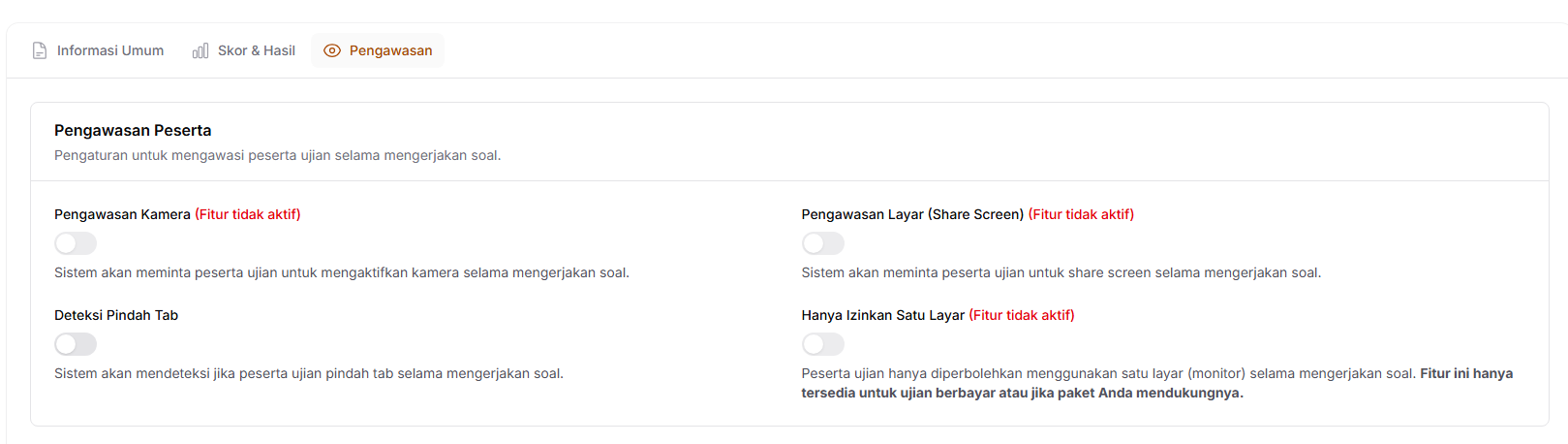
5. Set Up Participant Proctoring
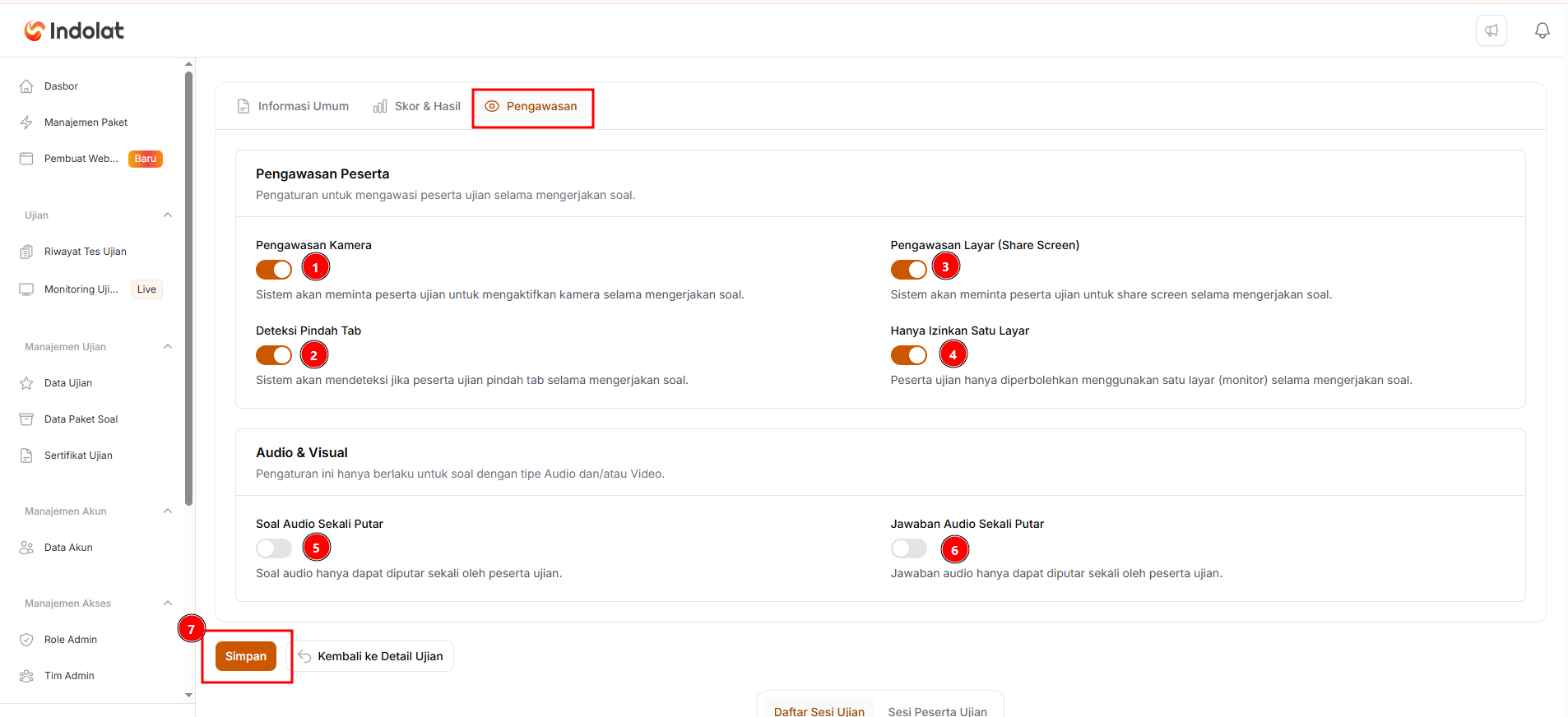
- Camera Proctoring
Turn this on if participants must keep their camera on while taking the exam.
Example: so proctors can make sure participants are working on their own. - Tab Switch Detection
Turn this on if the system should record when a participant opens another tab or page during the exam.
Example: a participant switches from the exam page to a search engine. - Screen Proctoring (Screen Share)
Turn this on if participants must share their screen during the exam.
Example: proctors can see which apps or pages a participant has open. - Allow Only One Screen
Turn this on if participants may only use one monitor.
This setting suits paid exams or exams that need stricter proctoring. - Play the Audio Question Once
Turn this on if the audio in a question may only be played once.
Example: English listening questions. - Play the Audio Answer Once
Turn this on if the audio in the answer options may only be played once.
The label (Feature inactive) means the feature isn’t available for the exam type you’re using, for example a Standard Exam (Free Plan).