
1
Open Application Settings, then select Branding Customisation
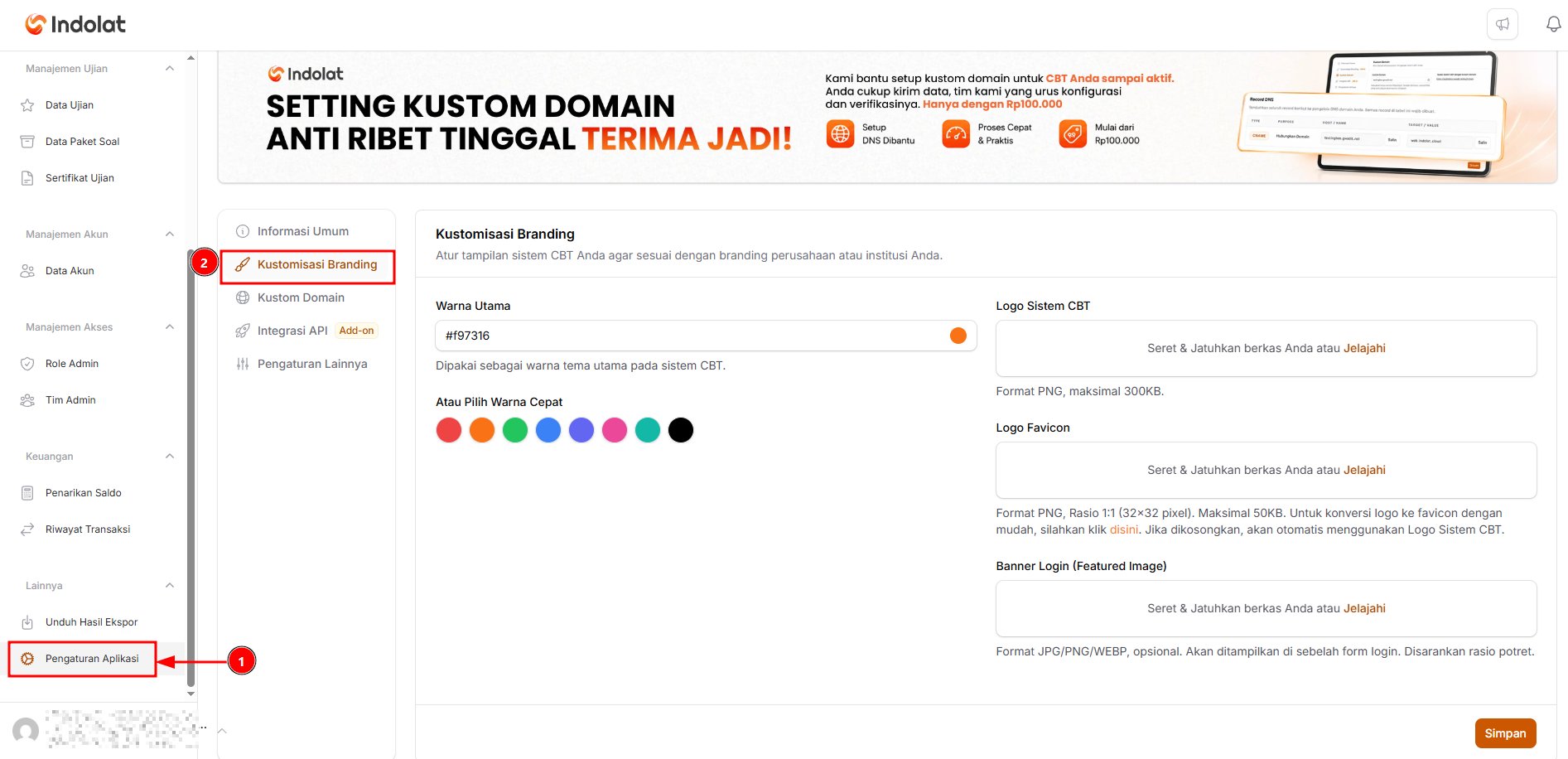
Branding Customisation is an add-on. While the add-on is inactive, the Branding Customisation tab shows an Add-on badge, its fields can’t be changed, and the Save button is replaced by Enable the Branding Customisation Add-on.
2
Match the CBT system to your company or institution branding
-
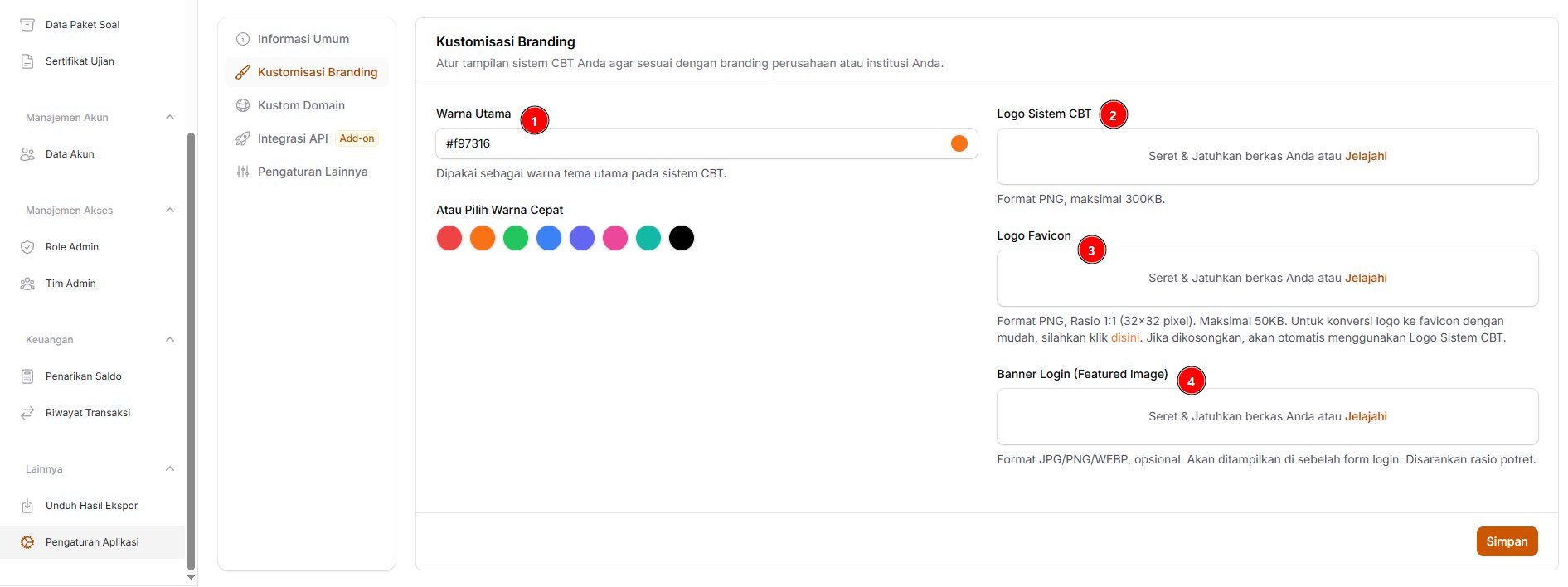
Primary Colour
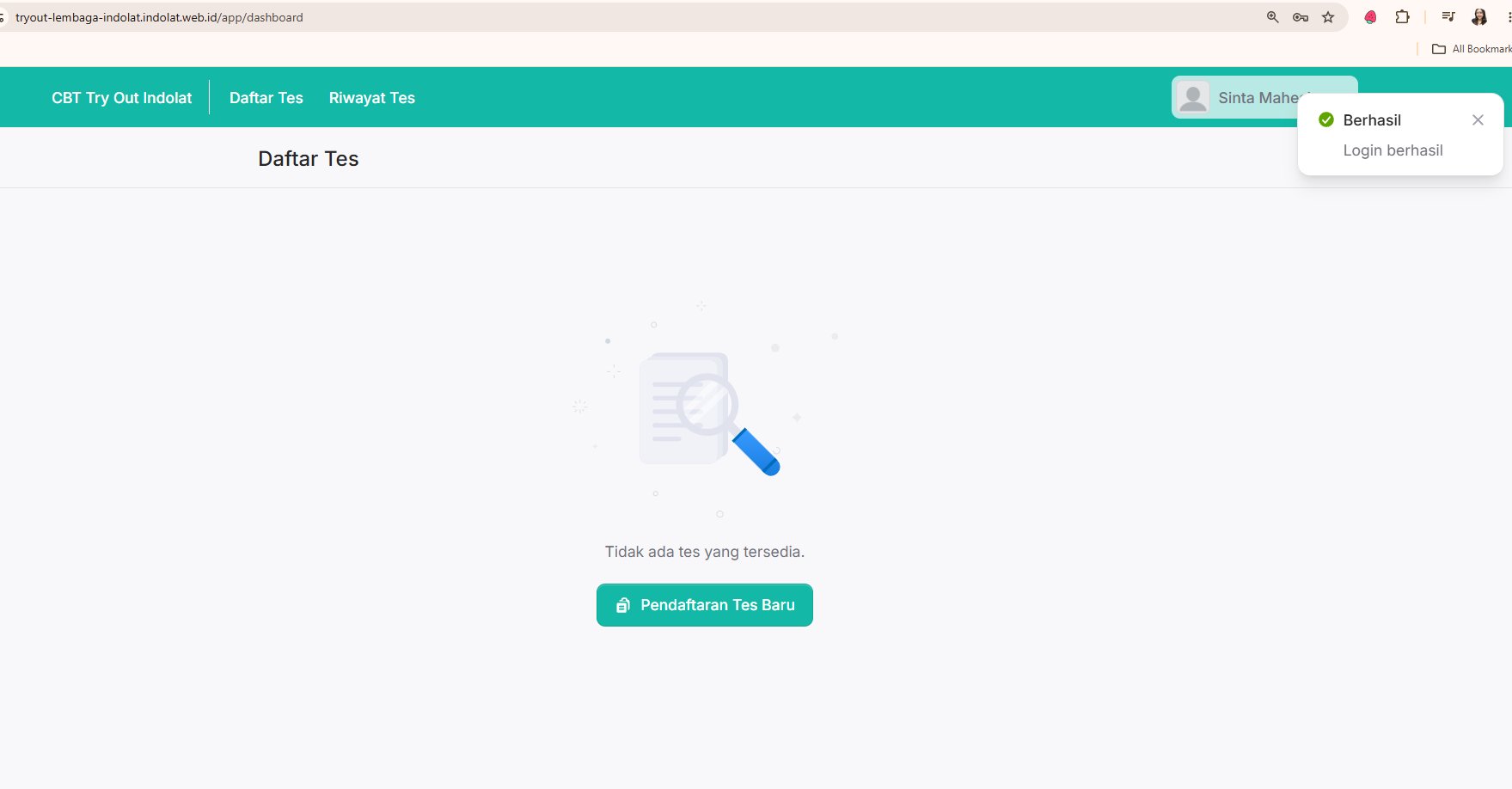
Choose the colour used as the main colour of the CBT system interface.💡 For example, if your institution uses teal, choose teal so that buttons and other parts of the interface match your institution’s identity.
Here is how it looks to participants: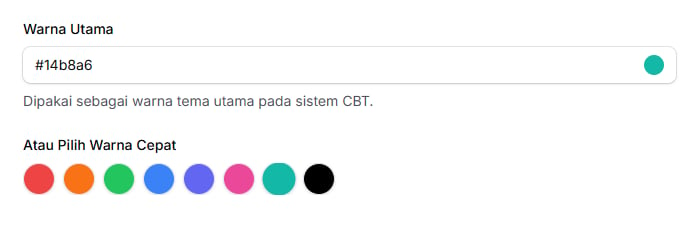
-
CBT System Logo
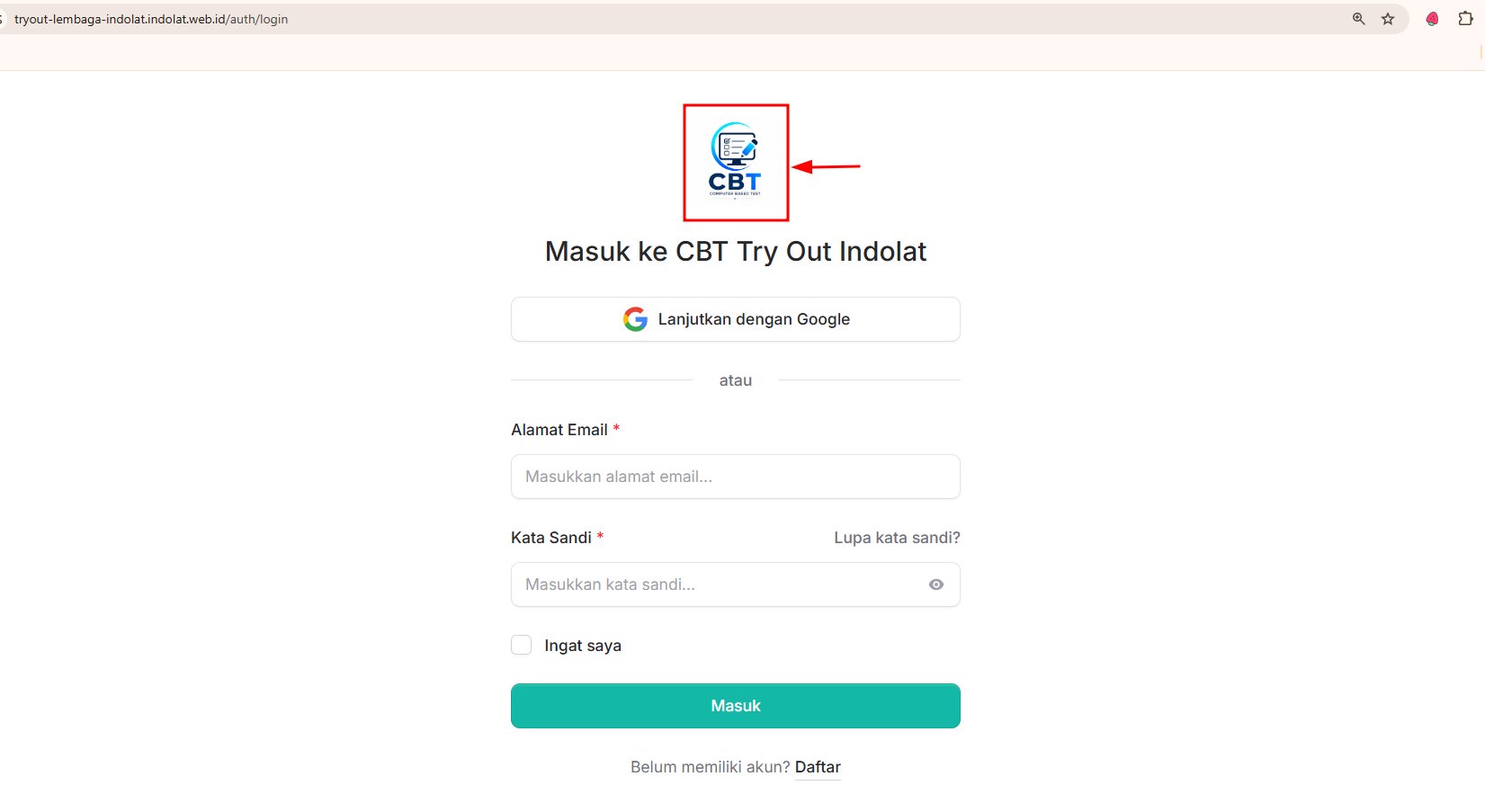
Upload your institution’s main logo by clicking Browse.💡 Example logo: This logo appears on the system pages and helps participants confirm that they have opened the right CBT system.
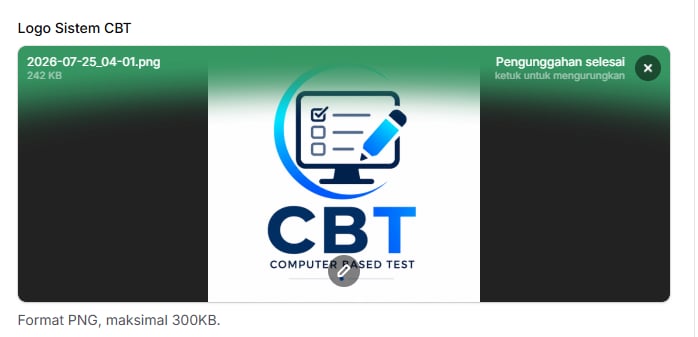
 Use a PNG image of up to 300 KB.
-
Favicon Logo
A favicon is the small image shown at the top of the browser, right next to the page name. 💡 Example: the favicon is the same as the logo.Here is how it looks to participants – look at the top-left corner.
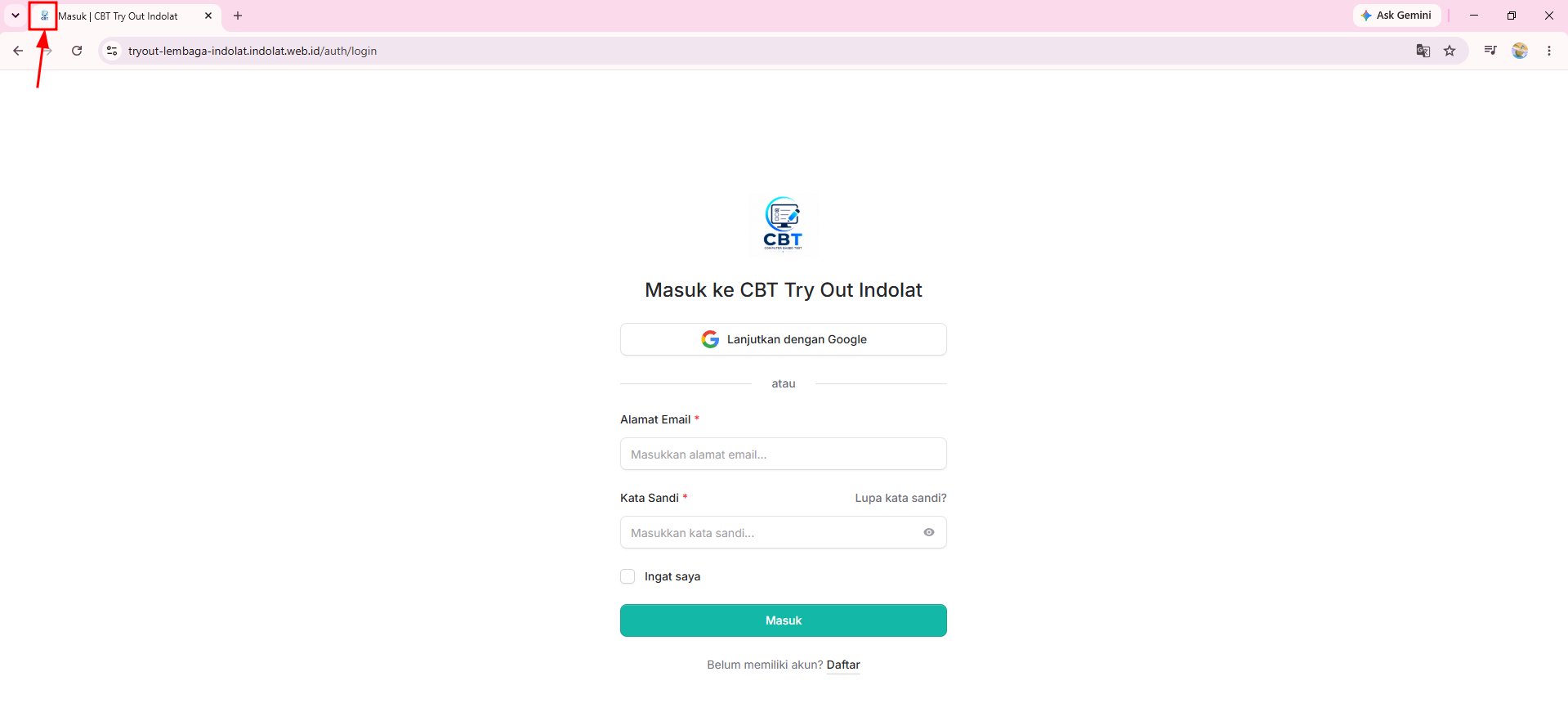 Use a PNG image with a 1:1 ratio (32 × 32 pixels) of up to 50 KB. If you leave this field empty, the system uses the CBT System Logo automatically.
-
Login Banner (Featured Image)
Upload an image (optional) to show next to the participant login form. You can use this space to show:- tryout (practice exam) information
- institution promotions
- exam schedules
- or an image of your institution’s identity
Use a simple, easy-to-read image so participants aren’t confused when they log in. Here is how it looks to participants: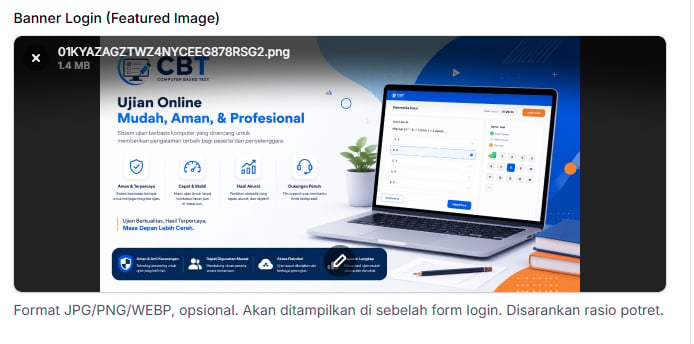
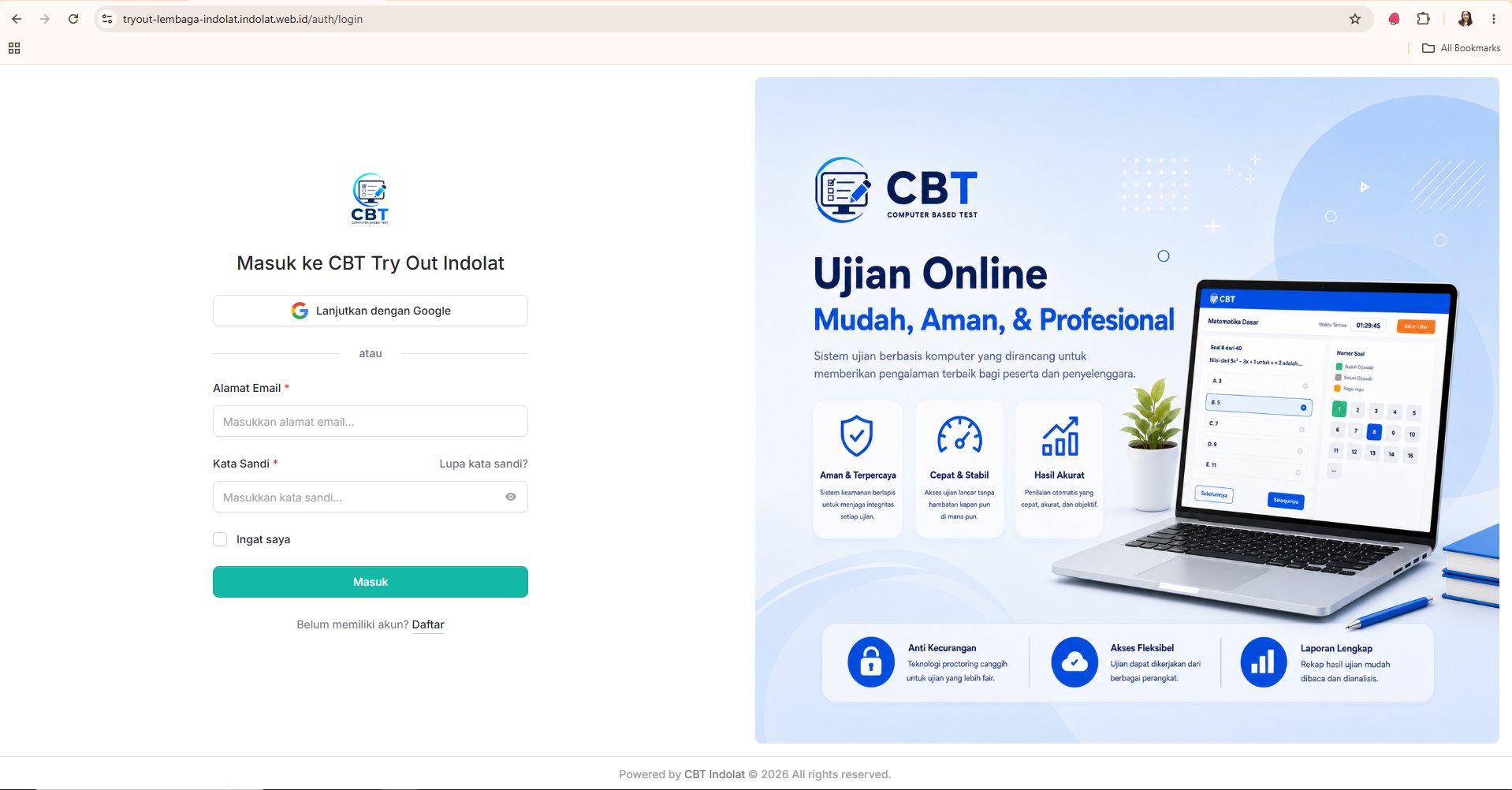 Use a JPG, PNG or WEBP image of up to 2 MB. A portrait ratio is recommended.
Branding Customisation only changes how the system looks. The login link still follows the General Information tab, and how participants log in follows the Other Settings tab.
3
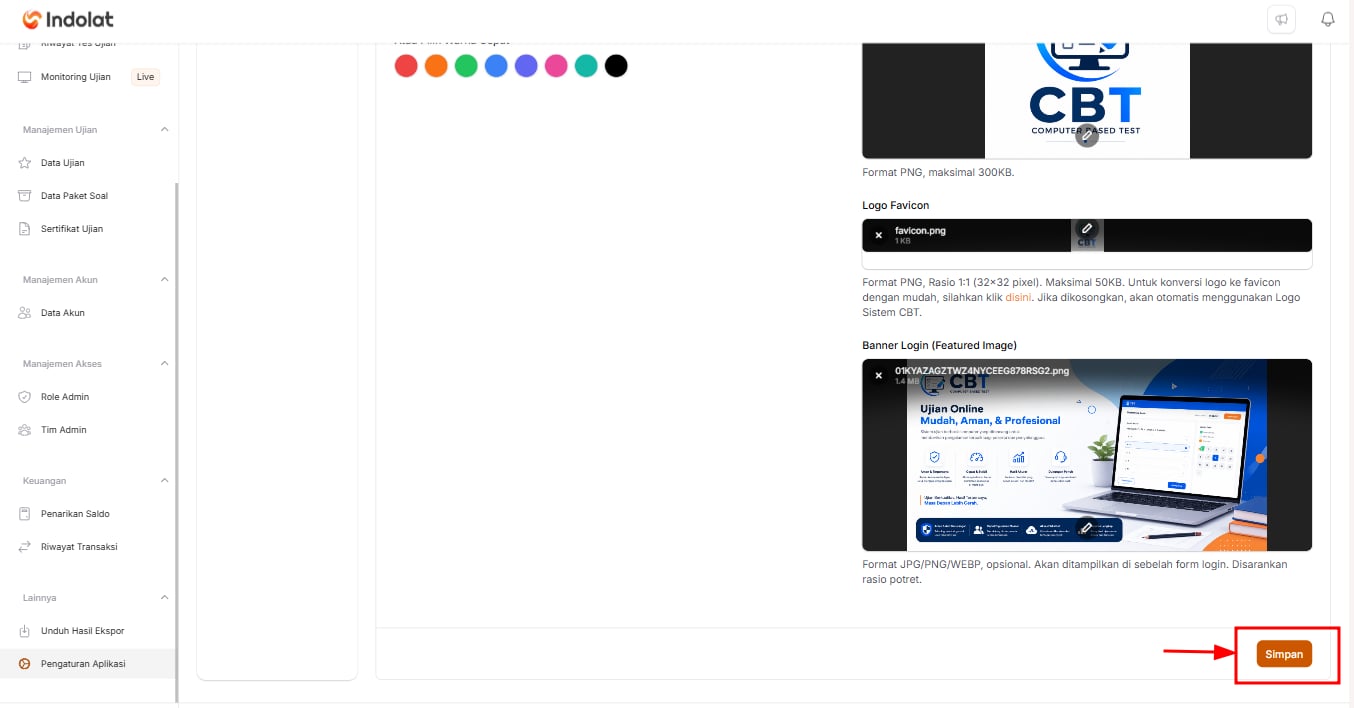
Click Save
Once everything is set as you want, click Save.