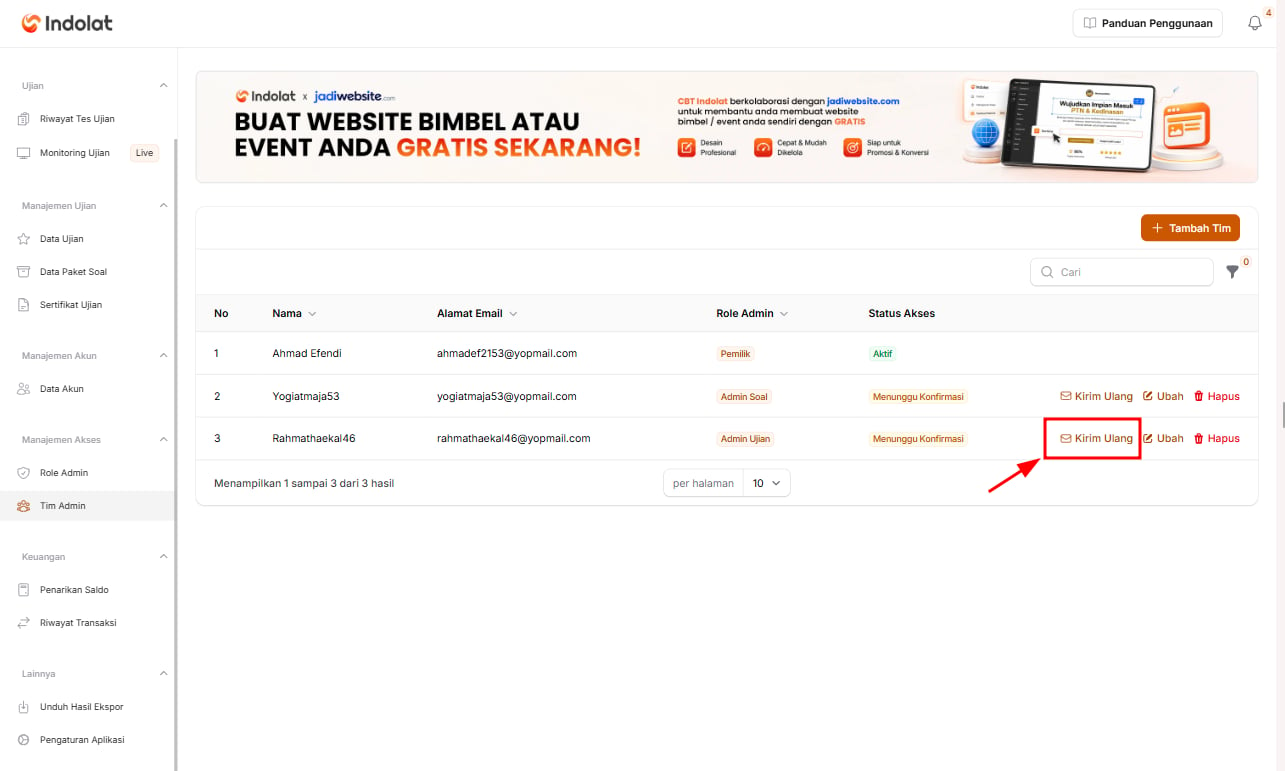

For example, an institution has two additional staff members:Access is given in two stages. First, create an Admin Role for each job. Then add members through Admin Team and select the matching role.
- Admin Soal (question admin), who creates question packages, questions and answers
- Admin Ujian (exam admin), who creates exams, tests and exam sessions
This feature needs the Access Management add-on to be active on the project. Without it, the project owner can still prepare Admin Roles, but the Add Team button doesn’t appear; the page shows an Enable the Access Management Add-on button instead.
1. Create an Admin Role
An Admin Role is the role a user has when accessing the application. With this setting, you decide which menus each member is allowed to open and manage.💡 Example:This way, each team member can focus on their own job and has limited access to the menus.
- Admin Soal only manages question packages, questions and answers.
- Admin Ujian only manages exams, tests and exam sessions.
1
Click Add Role
Open the Admin Role menu, then click the Add Role button.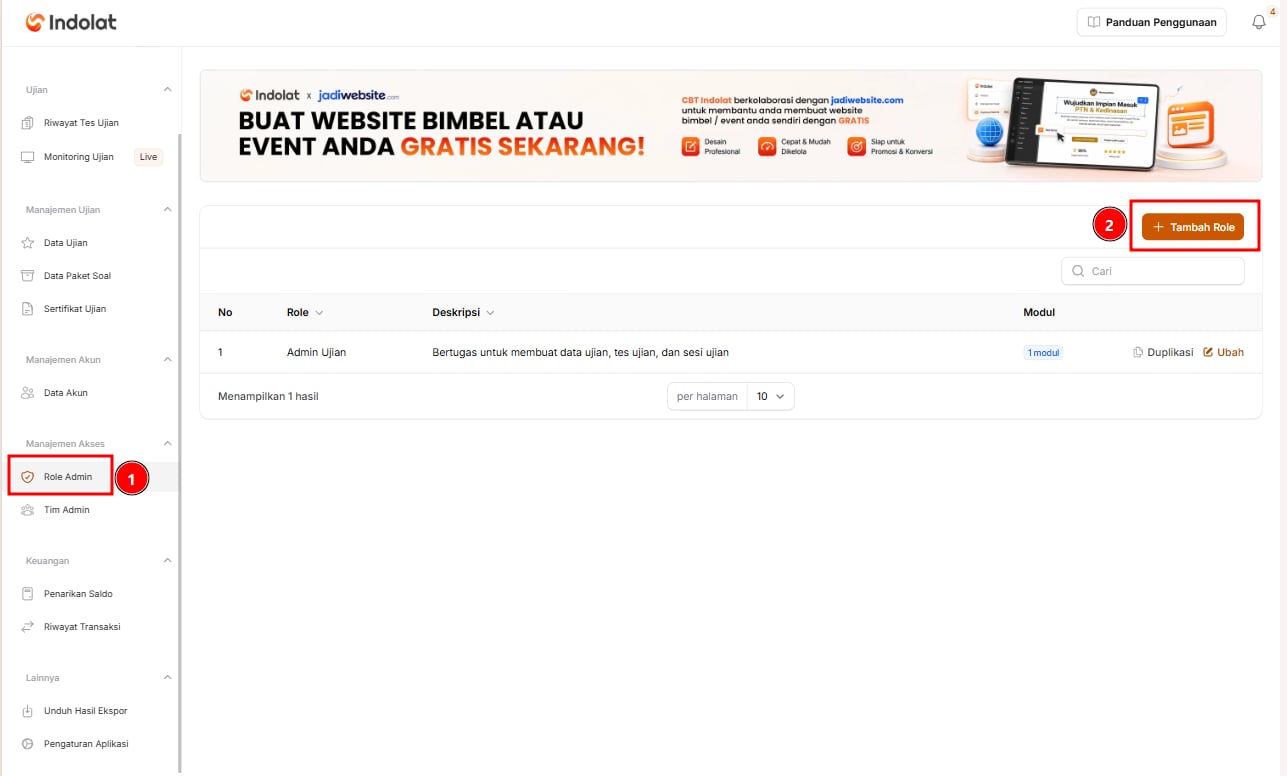
2
Fill in the role details
Fill in the details of the role you’re adding.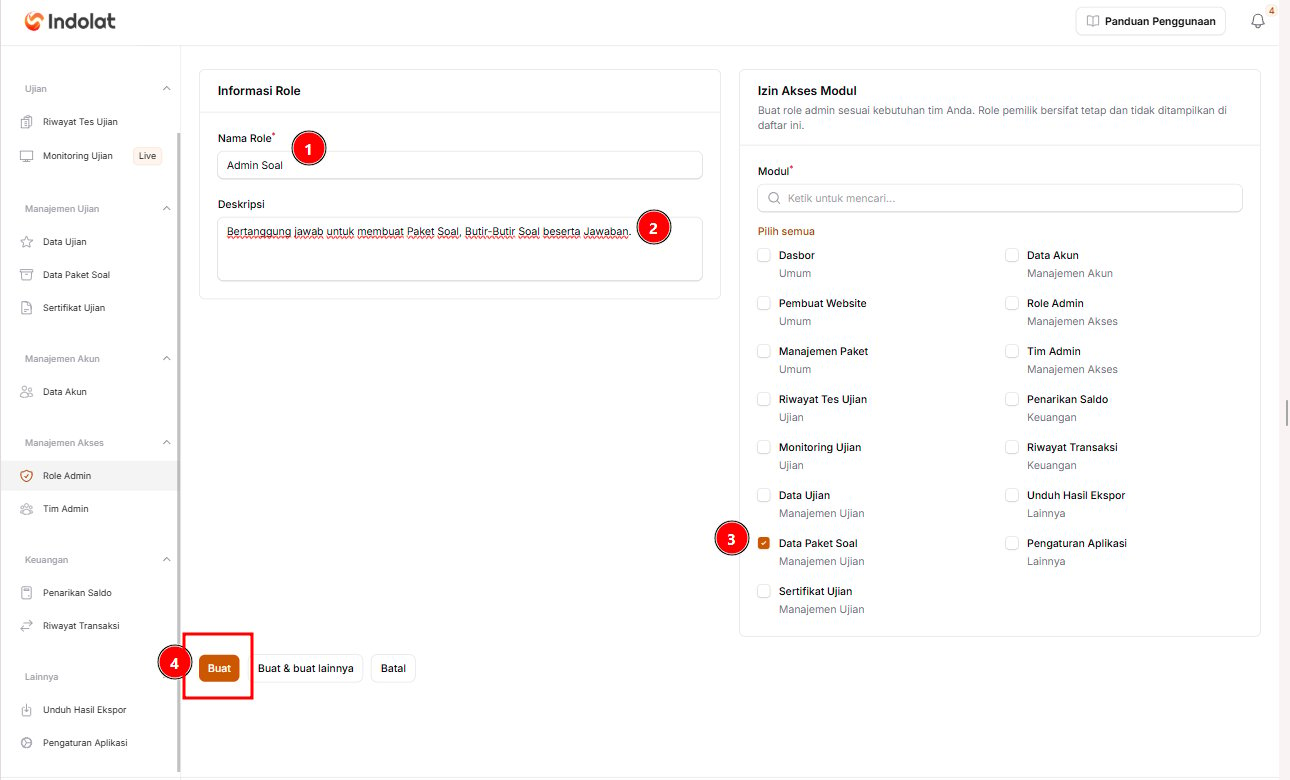
-
Role Name
Enter the name of the role you’ll give to team members. Use a name that’s easy to recognise and matches the job.
Example: Admin Soal
-
Description
Enter a short explanation of the role’s duties and responsibilities.
Example: Responsible for creating question packages, questions and answers.
-
Module Access Permissions
Select the menus that members with this role are allowed to open and manage.
Example: For the Admin Soal role, tick Question Package Data. With this setting, members can only access the parts related to managing questions.
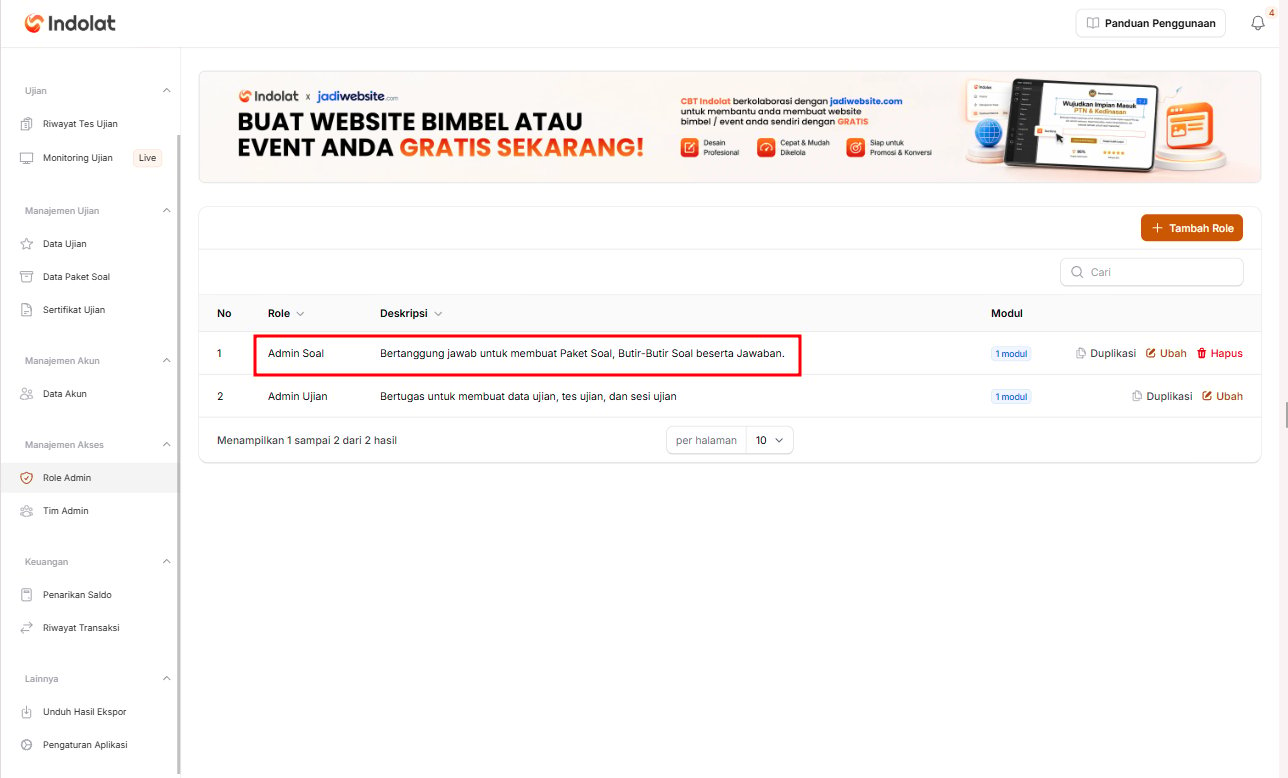
- Once all the details and access settings are right, click Create to save the role.
The roles you create can later be selected when you add members through the Admin Team menu.
2. Add Team Accounts with Access
Once the role has been created, add the team members who will receive access.💡 Example: Yogi prepares the questions for an SNBT tryout (practice exam). Select the Admin Soal role so that Yogi only gets access to the parts related to question packages. Rahmat sets up the exam schedule and sessions. Select the Admin Ujian role so that Rahmat can manage exam data within the permissions given. You, Ahmad Efendi, as the Owner, can access every menu.
1
Click Add Team
Open the Admin Team menu, then click the Add Team button.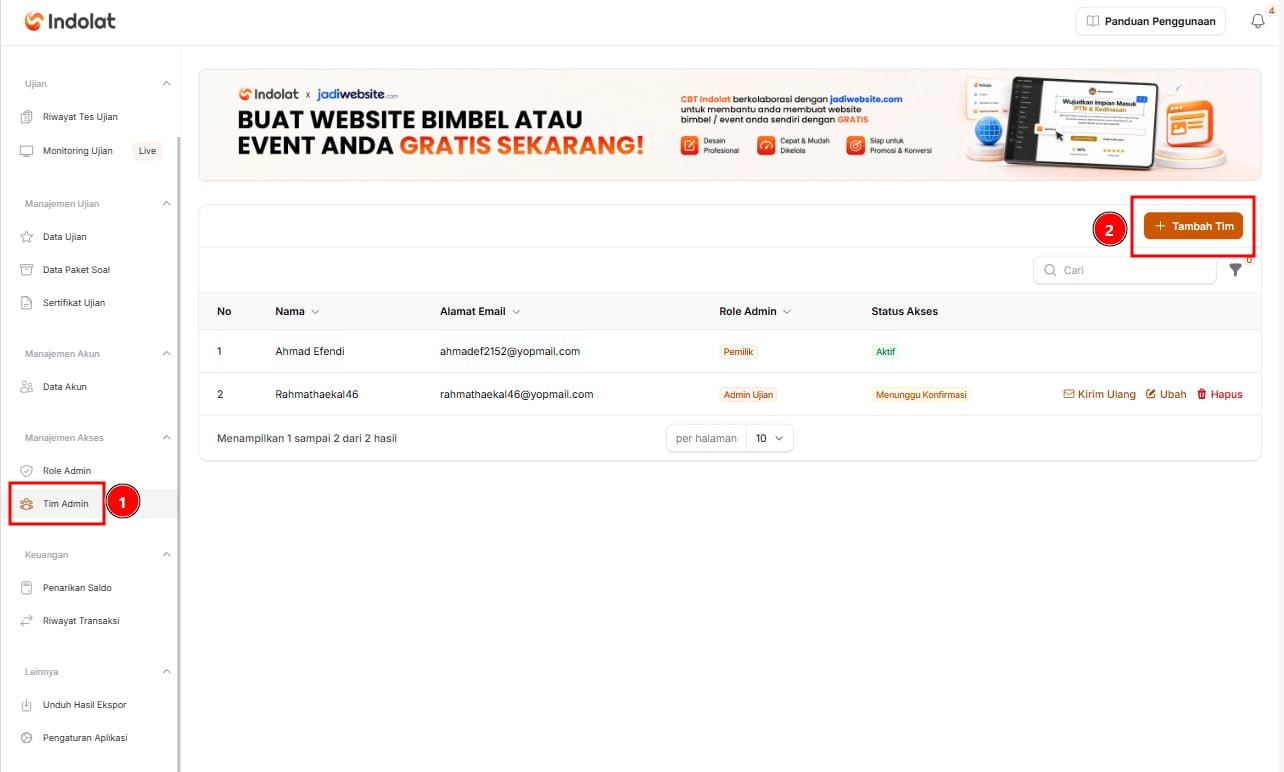
2
Fill in the team account details
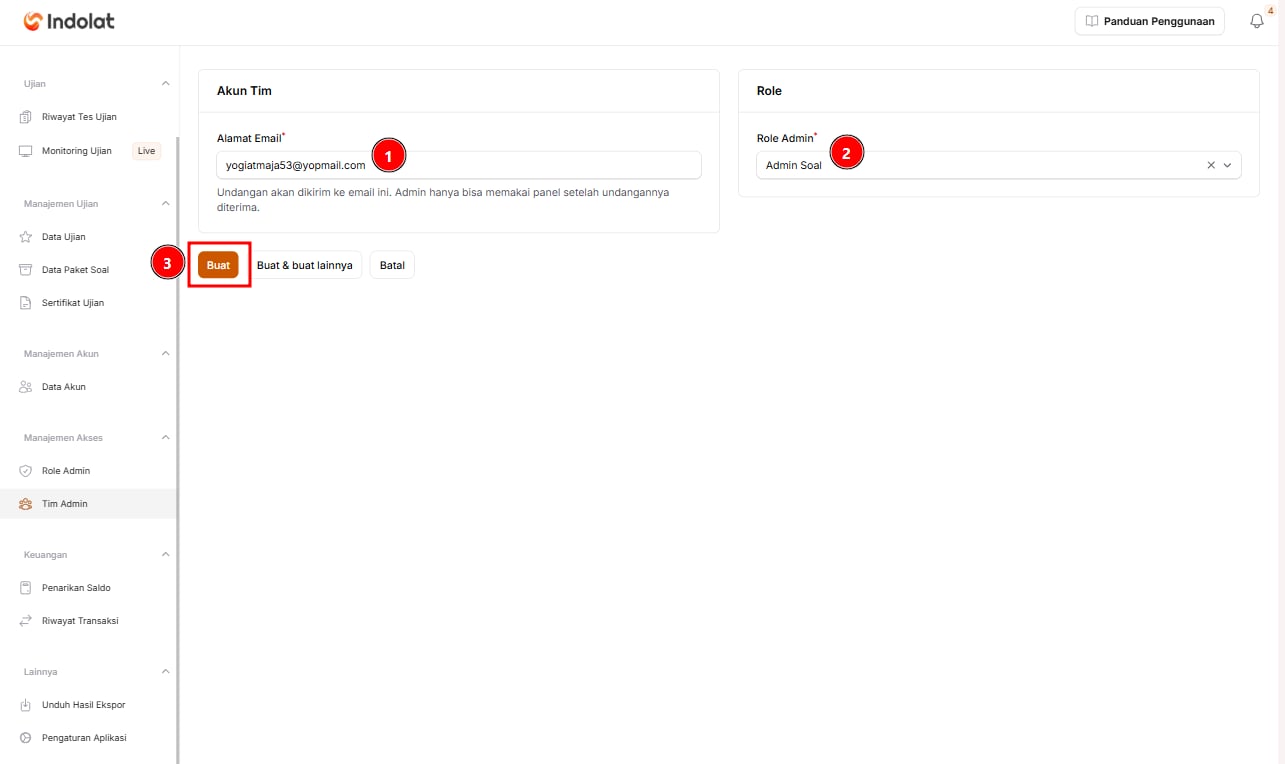
-
Email Address
Enter the email address of the team member you’re giving access to. Make sure the email is correct and still active, because the invitation to join the Indolat app is sent to this address.
Example:
yogiatmaja53@yopmail.com -
Admin Role
Select the role that matches the team member’s job. The roles listed are the Admin Roles you created earlier.
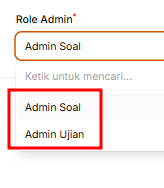
Example:
- Select Admin Soal if the member manages question packages, questions and answers.
- Select Admin Ujian if the member manages exam data, tests and exam sessions.
The selected role determines which menus the member can open and manage. - Once the email address and role are right, click Create.
- Edit to change the member’s role.
- Delete to remove the member’s access from the team.